ConnectVPN Mac setup
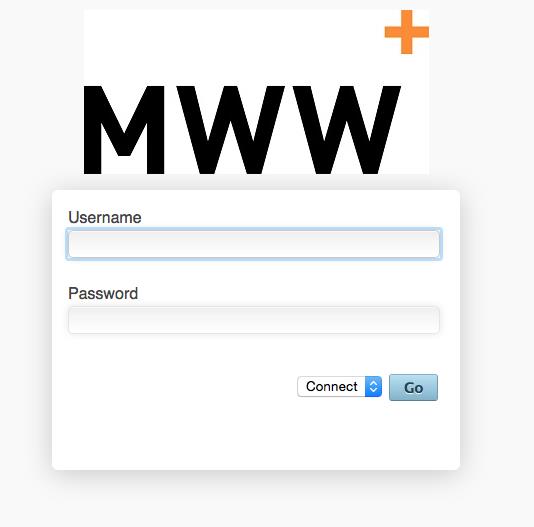
Navigate to https://cloudvpn.mww.com and enter your domain credentials (first initial and last name along with your password). Select Connect and click Go.
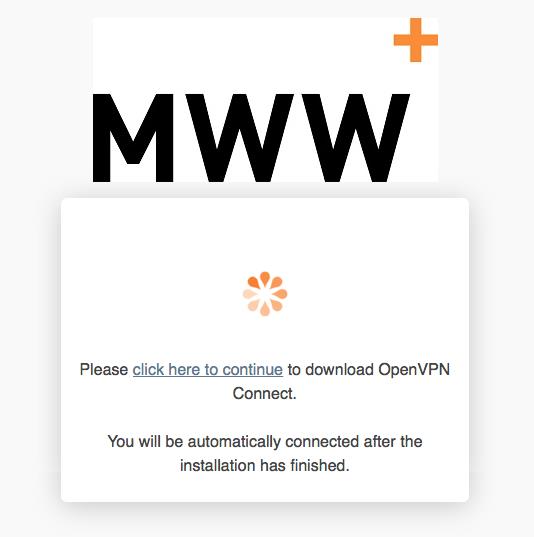
Click on “Click here to continue” to download the software.
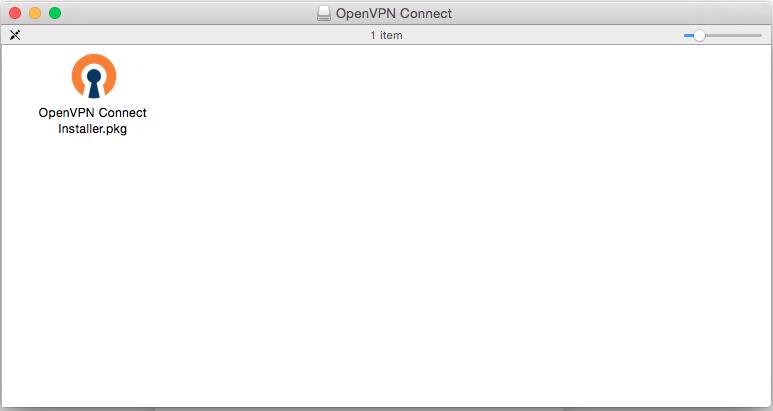
Launch the Installer
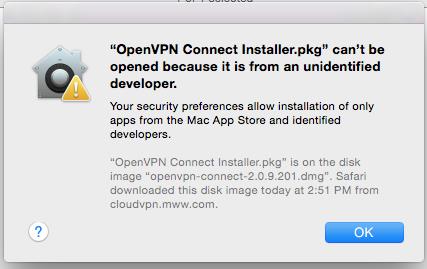
You may receive this error if your computer settings do not allow software from outside of the App Store to be installed. Select OK
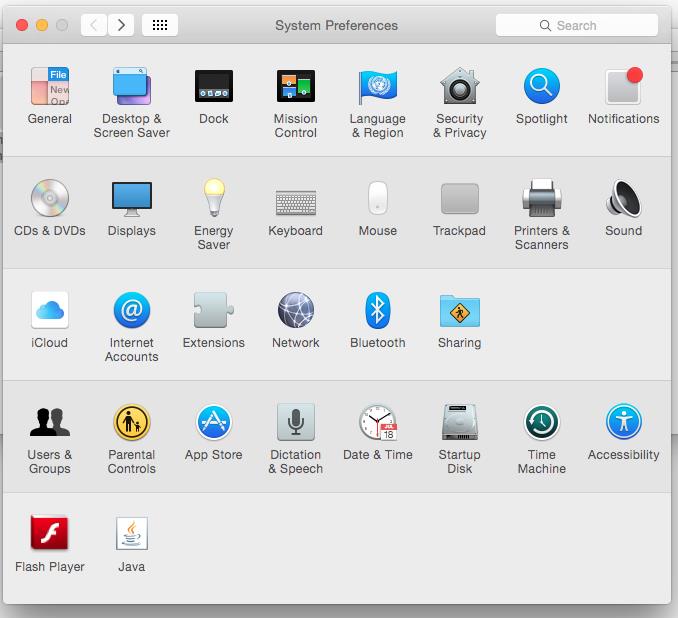
To allow you to download software outside of the app store, go to “System Preferences” and select “Security & Privacy”
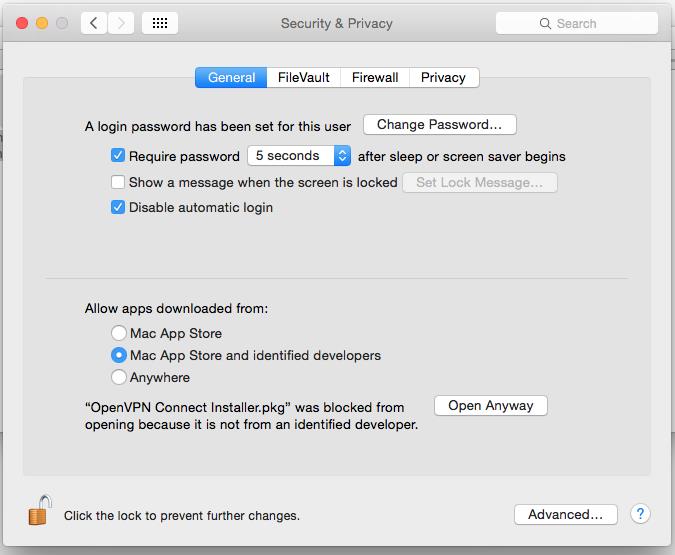
Under “Allow apps downloaded from” select “Anywhere”
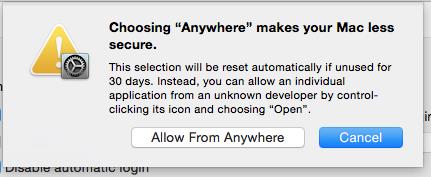
Click “Allow allow from Anywhere” in the dialogue box.
Launch the installer that you previously downloaded and you will be prompted with the screen below. Click “Continue”
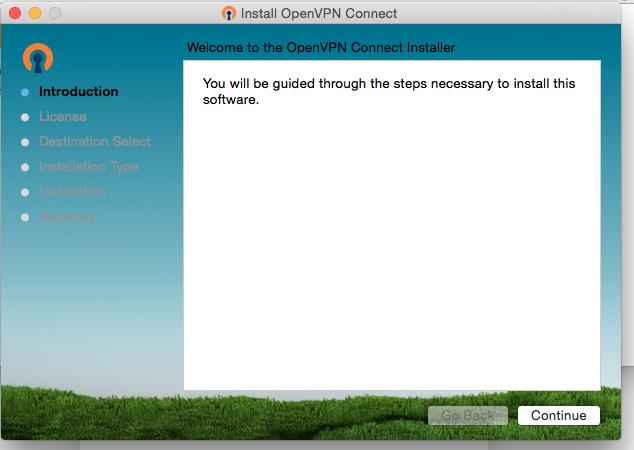
Click “Continue” again

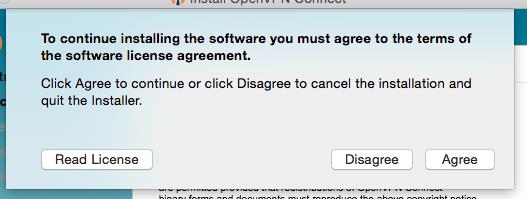
Click “Agree”
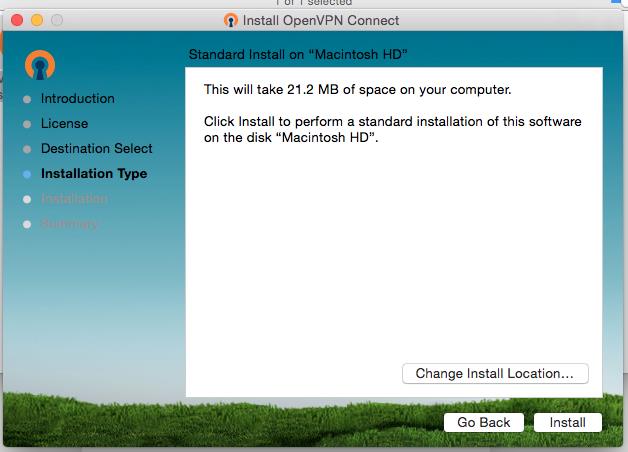
Click “Install”
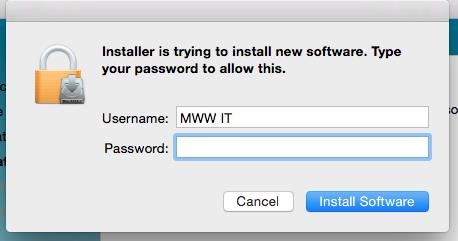
Input the credentials you used to sign into your Mac and click “Install Software”
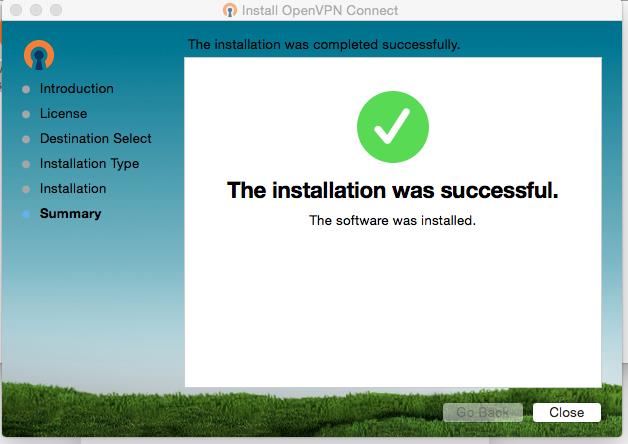
When installation is successful. Click “Close”
Use your “Finder” and navigate to “Applications” and go to “Open VPN” and run “OpenVPN Connect”.
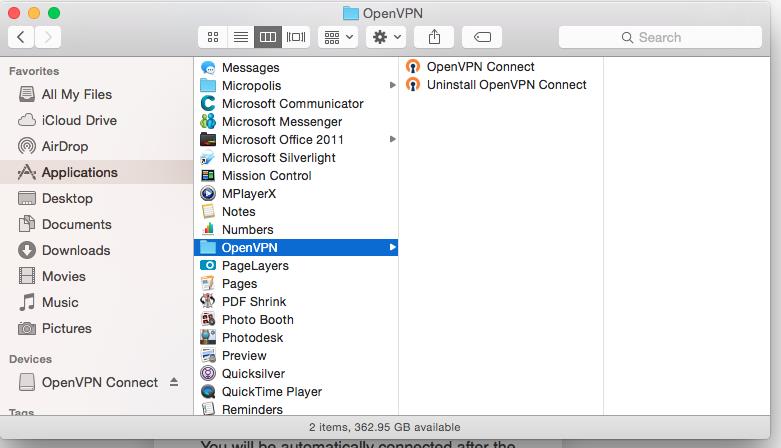
When you launch Open VPN, it will appear in the tray in the top right of the screen.

Select the icon and click Connect… as seen below.
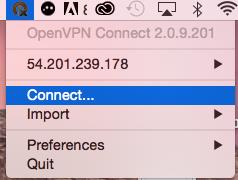
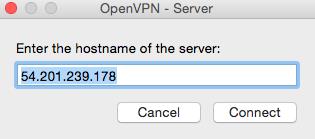
Enter 54.201.239.178 as the server
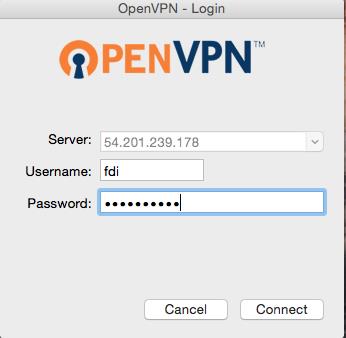
Enter your domain credentials (first initial and last name along with your password)
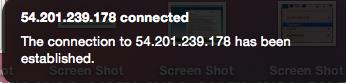
You should get a popup bubble that indicates you’ve successfully established the VPN connection
Comments