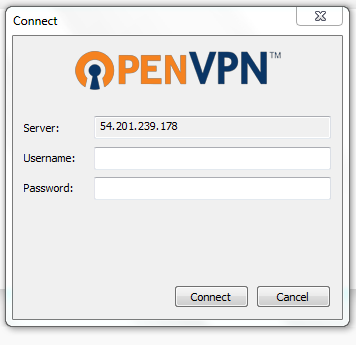
You will notice the following screen on your Laptop the first time you login after software has been pushed automatically
- Enter the username and password you use to log into your PC, then click connect.
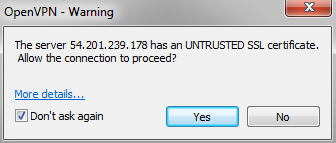
- Next you will see the following ‘popup. Click “yes,” Check the “Don’t ask again” box and proceed.
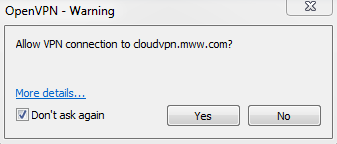
- You will see another “popup” on the screen. Again, click “yes.” Check the “Don’t ask again” box and proceed.
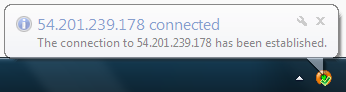
- When connected, you will see after 10-15 seconds a prompted in the lower right hand corner of the screen stating that you are connected.
Re-Connect Open-VPN
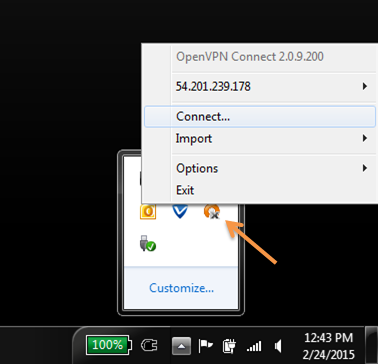
After the first time you connect to Open-VPN, the Open-VPN icon will take a place in the lower right hand side of the screen. There’s a small arrow there, you need to click it, and you will see a small orange icon. Click on it, and then click “connect” to have a VPN session.
Disconnect Open-VPN
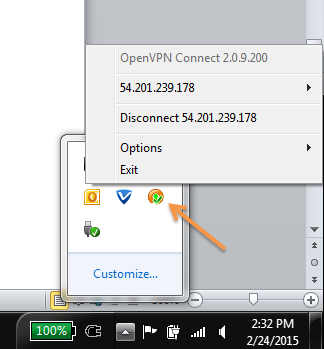
Go to the lower right hand side of the screen, and click on the small arrow, then click the orange circle (OpenVPN connect), then “disconnect.
Comments