How to Connect to the Wifi
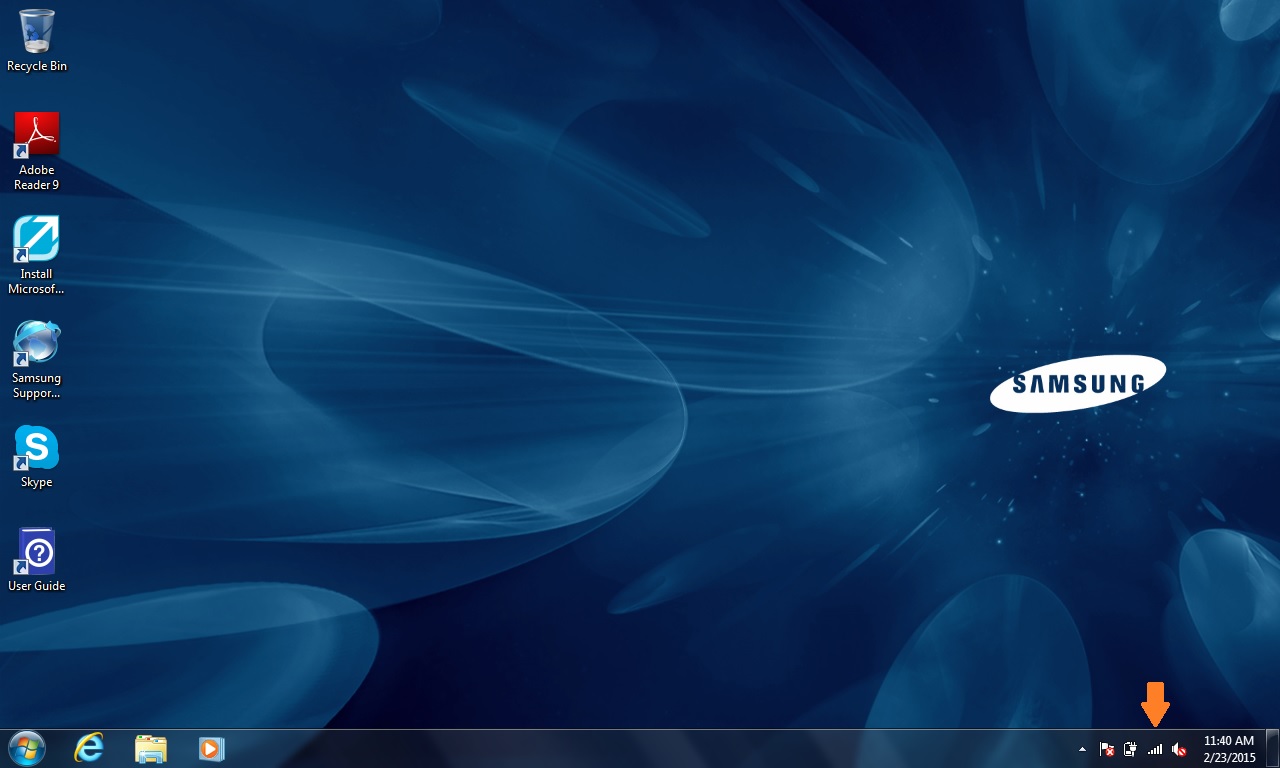
First, Start by clicking on the Wifi signal bar icon on the bottom of your taskbar:
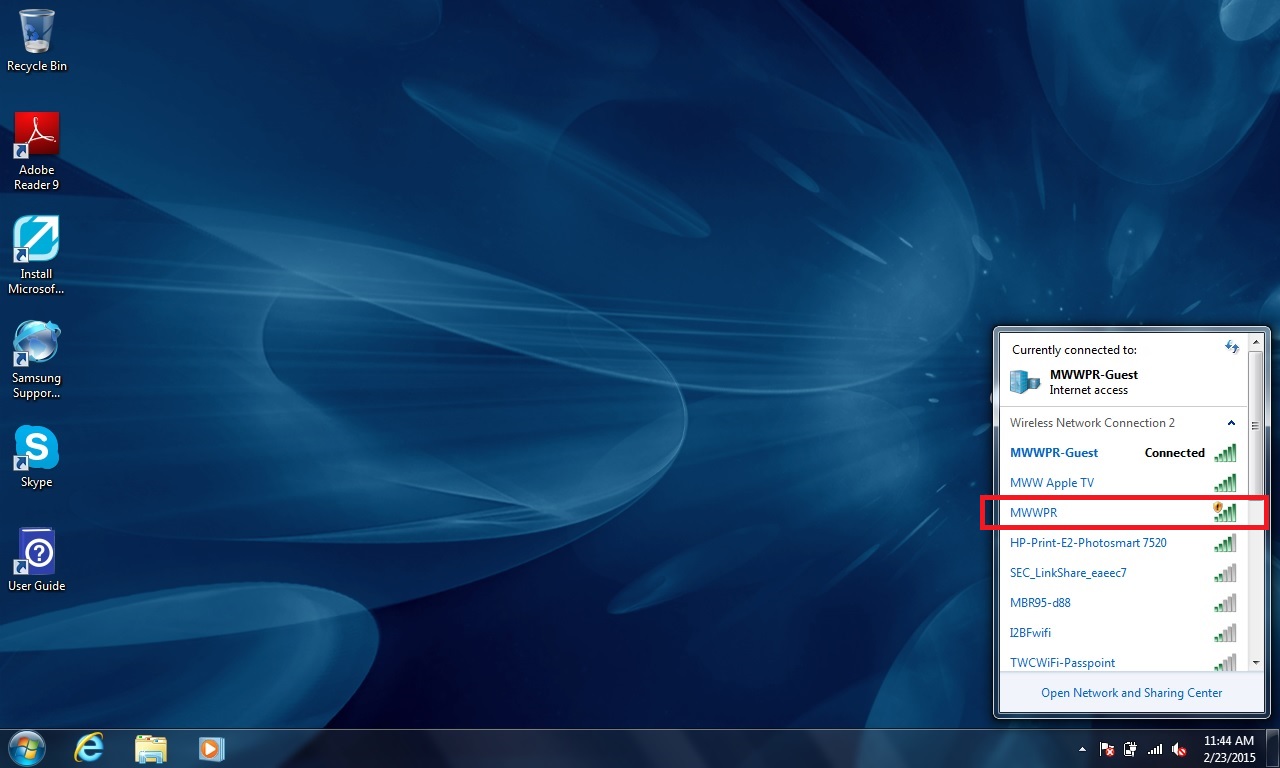
Next, Look for the Wifi Network labeled MWWPR:
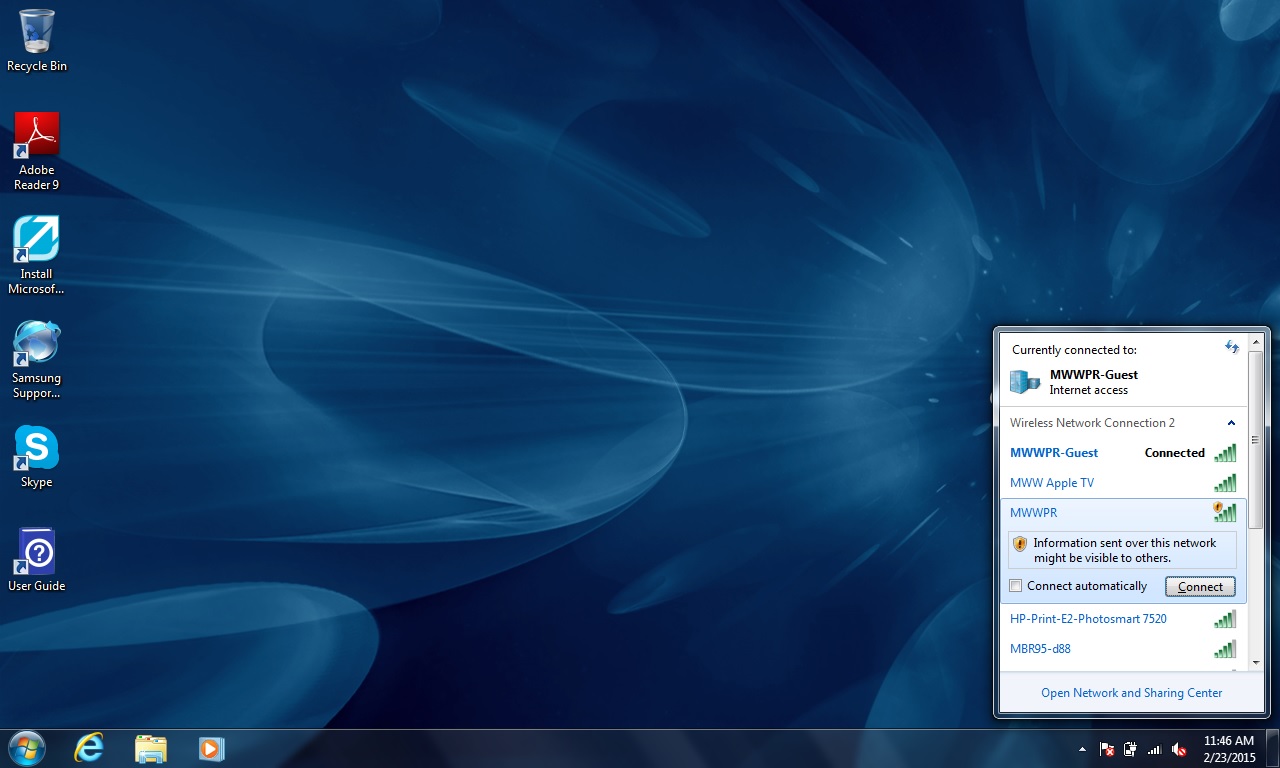
If you click on the MWWPR Wifi a small dialog box will appear. From here just click the word “Connect”
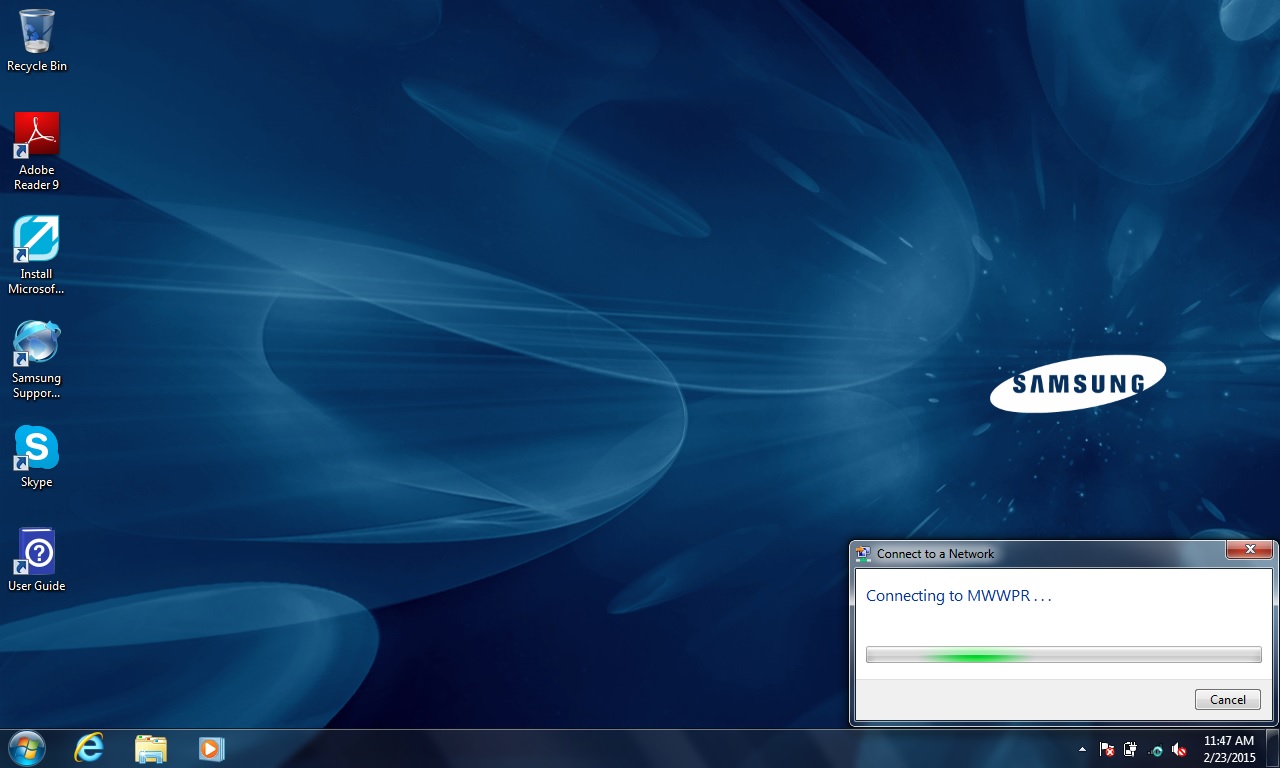
You will then see a progress bar as it attempts to connect that looks like this:
After a few moments you will notice the word “Connected” next to the MWWPR Wifi
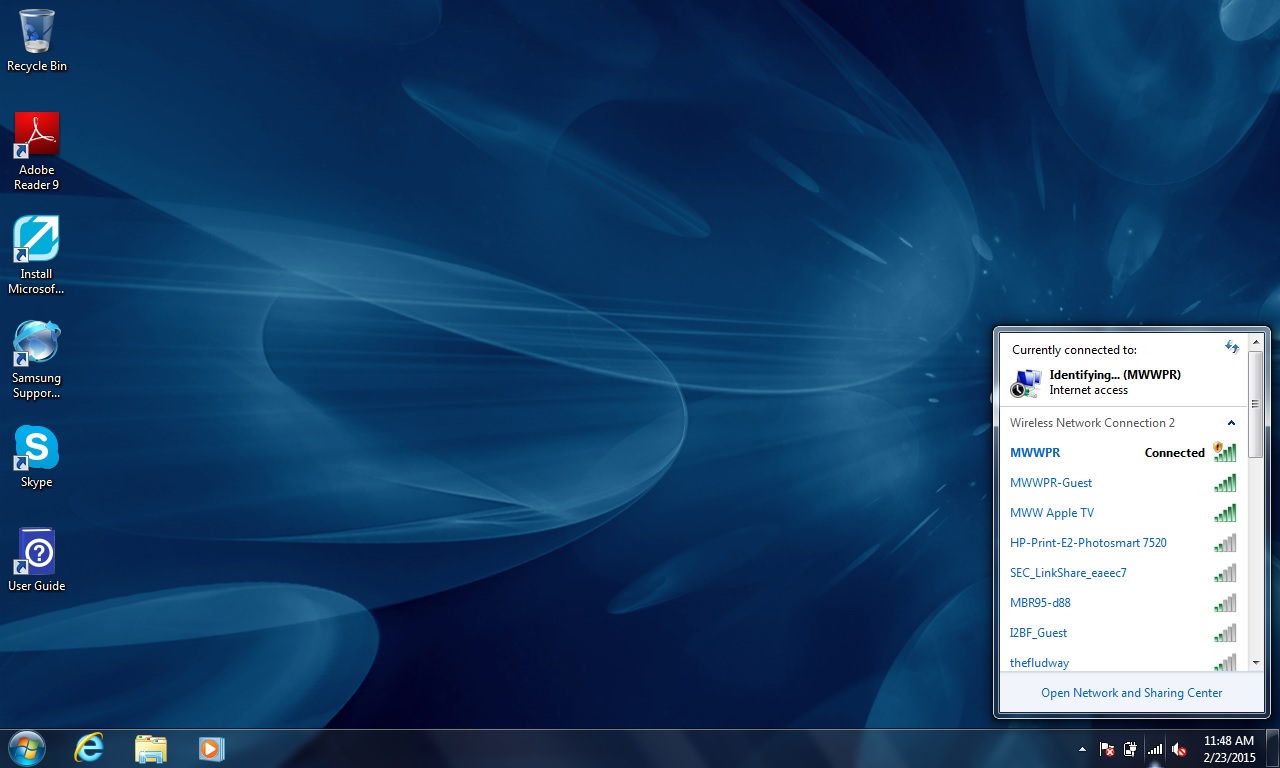
If this is your first time connecting to the MWWPR Wifi, You will see a screen asking you to identify your location as such:
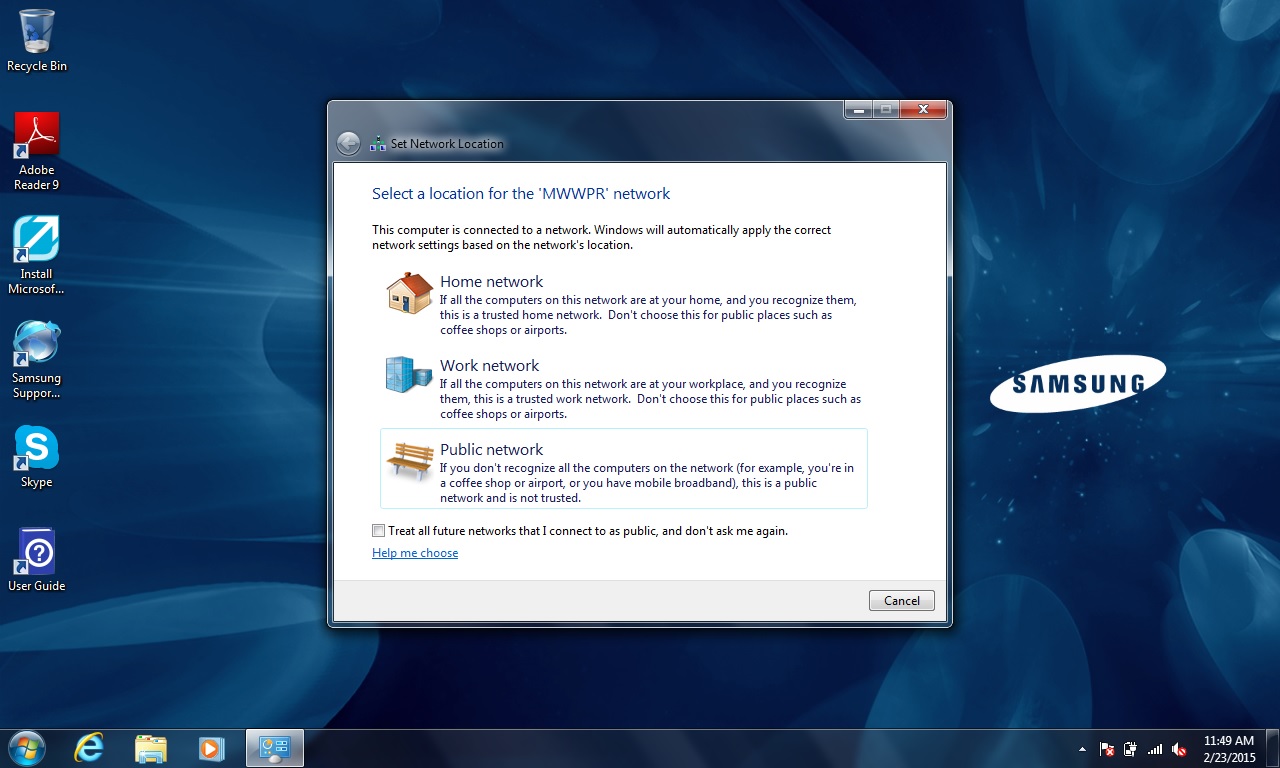
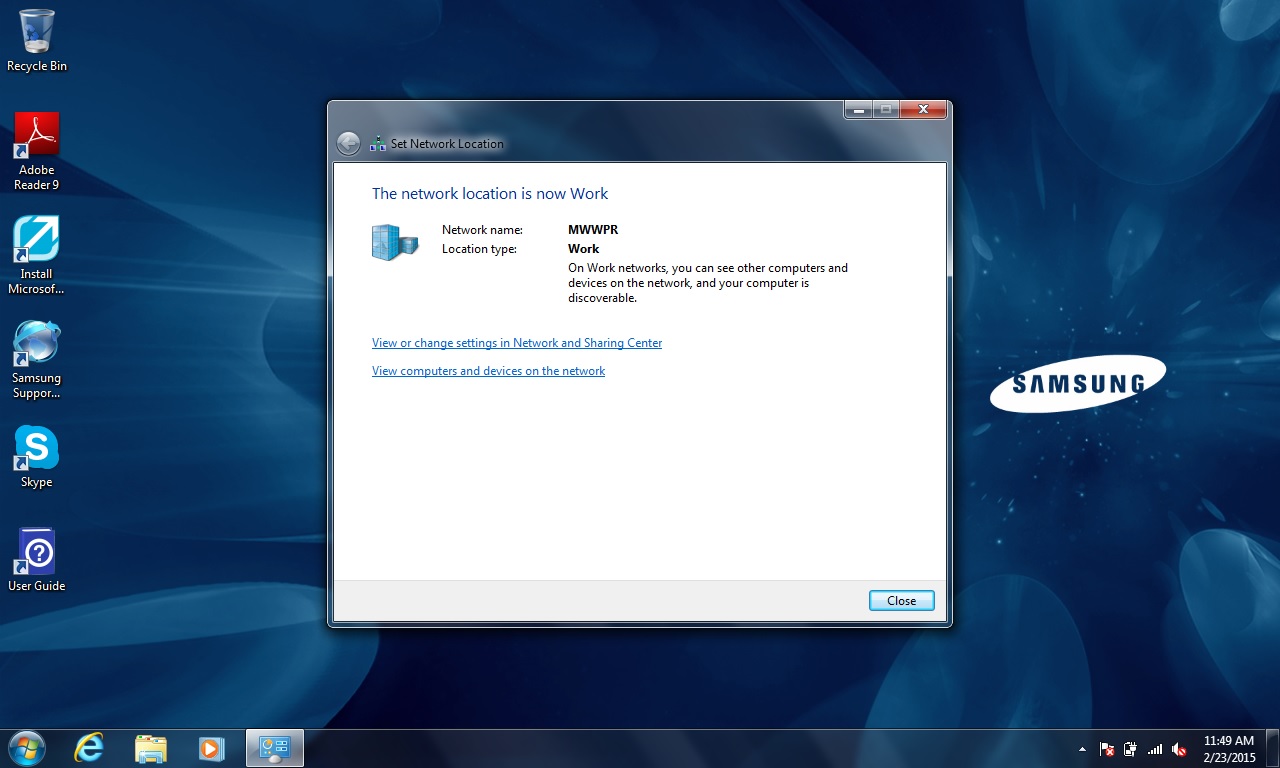
Click on “Work Network” to set the location for this Wifi which will display a prompt screen when completed
Open your Internet Explorer browser to bring you to the login screen (This will only appear if you have not logged in before)
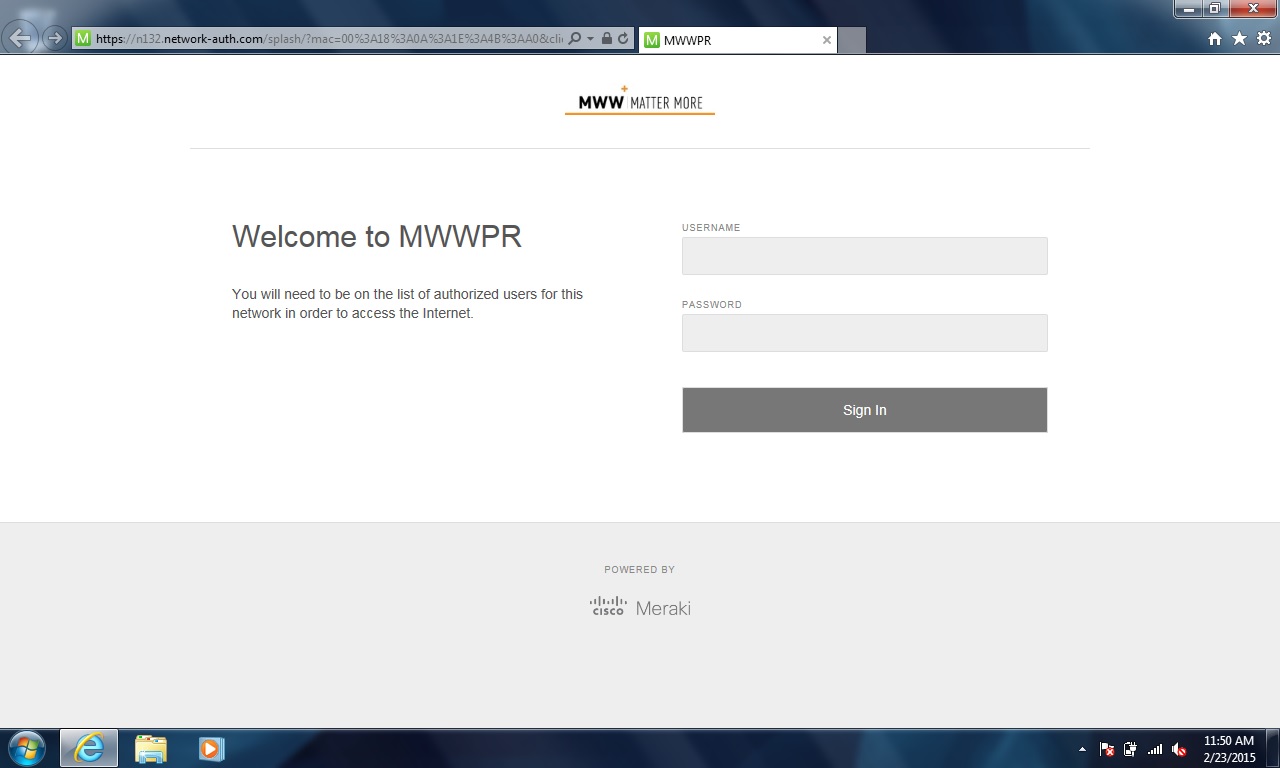
Enter your First Initial/Last Name as your username. For Ex: John Smith will be jsmith. Enter the same password you use to log into your desktop everyday
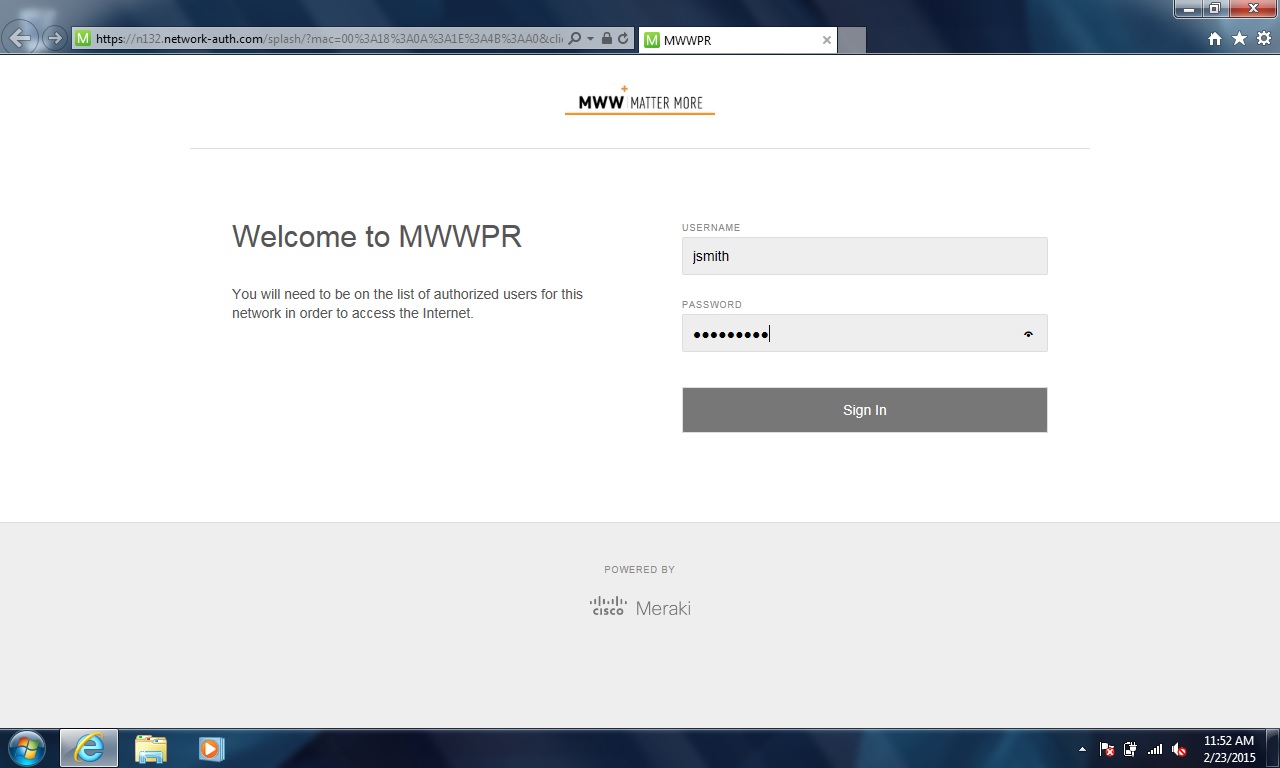
Once you have entered your credentials, Click the Sign in button. Please be patient as it may take a few minutes for your credentials to go through.
If the login you used worked correctly, you should be taken directly to your home page where you may browse the internet at your own discretion.
If you are unsure of whether or not your login worked correctly, Try opening up any browser of your choice and navigating to any website. If your page displays correctly, you are now connected to the MWWPR Wifi. If your page does not load or returns an error please check your credentials again or contact the helpdesk with the error you received.
Comments